
How to Recalibrate the Touchscreen on an AegisTec or AegisTecPlus Controller
If the touchscreen is unresponsive, “ghost touching,” or inaccurate, follow these steps in order.
- Power the controller completely off (e.g., unplug the unit).
- Power it back on.
- The instant the Aegis logo appears, rapidly and firmly tap all over the screen in a pattern (top-left → top-right → bottom → middle, etc.).
- You only have ~1.5 seconds, so be quick.
- It may take several power cycles to hit the hidden trigger spot.
- If successful, you’ll see this screen:
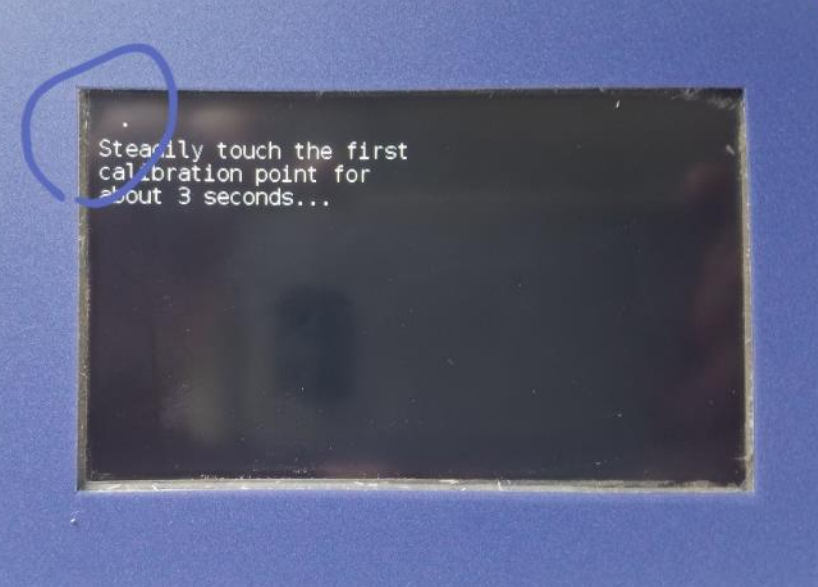
5. Press and hold each dot steadily (a pencil eraser works great):
Dot 1 → center
Dot 2 → upper left
Dot 3 → middle
Dot 4 → lower left
Dot 5 → lower right
Controller beeps and reboots when finished.
Troubleshooting Tips
- Use a pencil eraser or steady finger — moving around confuses it.
- If nothing registers at all → screen is probably bad.
- If calibration screen appears by itself on power-up → something is pressing the screen or the touchscreen has failed.
- Two fingers or objects touching at once → controller averages them and thinks you’re pressing in the middle.
When to Replace the Touchscreen LCD
Replace the screen if:
- Recalibration doesn’t fix accuracy
- Screen stays completely white after firmware update
- Screen is blank but relays still cycle normally
- Controller beeps when you touch the bezel (not the glass)
Blank Screen but Controller Still Works?
- Disconnect the red (+) and black (–) 24 V wires on the logic board (back of the door, behind the screen).
- Measure 24 V across the disconnected wires:
- No 24 VDC → problem is power supply
- Yes 24 VDC → screen or AV430 board is bad
- Quick test: press anywhere on the glass — if it beeps → replace only the screen.
- If relays still click with temperature changes → replace only the screen.